
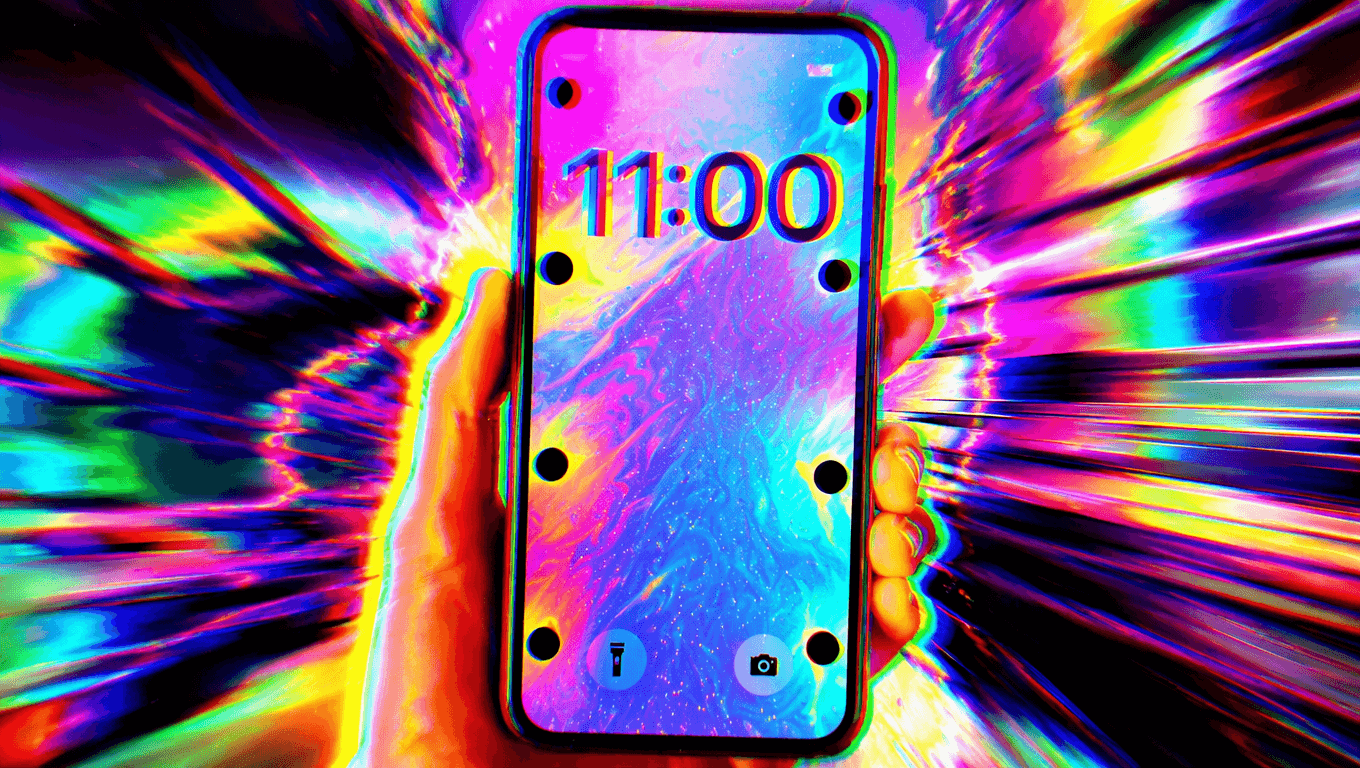
How to enable iPhone car sickness mode
The “Dancing Dots” feature is officially called Vehicle Motion Cues, an accessibility setting introduced by Apple in iOS 18 to reduce or prevent carsickness.
How It Works
- The Problem: Motion sickness usually happens because of a sensory conflict. Your inner ear feels the movement of the car, but your eyes are staring at a stationary screen, causing your brain to get confused and make you feel nauseous.
- The Solution: The feature places small, animated dots on the edges of your iPhone screen. Using the phone’s built-in sensors, these dots shift in the opposite direction of the vehicle’s movement (like acceleration, braking, or turning). This gives your eyes a visual anchor that matches what your inner ear is feeling, clearing up the sensory confusion without blocking your screen content.
How to Activate It on Your iPhone
You can turn this on through your system settings by following these steps outlined on Apple Support:
- Open the Settings app on your iPhone.
- Scroll down and tap Accessibility.
- Under the Vision section, tap Motion.
- Tap Vehicle Motion Cues.
- Select your preference:
- On: The dots will stay on your screen continuously.
- Automatic: The iPhone will use its sensors to detect when you are in a moving vehicle and bring up the dots, then hide them when you stop moving.
Pro-Tip: Add It to Your Control Center
If you only want to use it occasionally, you can toggle it faster by adding it to your Control Center:
- Swipe down from the top right of your screen to open the Control Center.
- Press and hold an empty space to enter editing mode.
- Tap Add a Control at the bottom.
- Search for Vehicle Motion Cues and add its button to your grid.
Are you currently running iOS 18 on your iPhone, or do you need help checking your system version?